Learns once,
then runs itself.
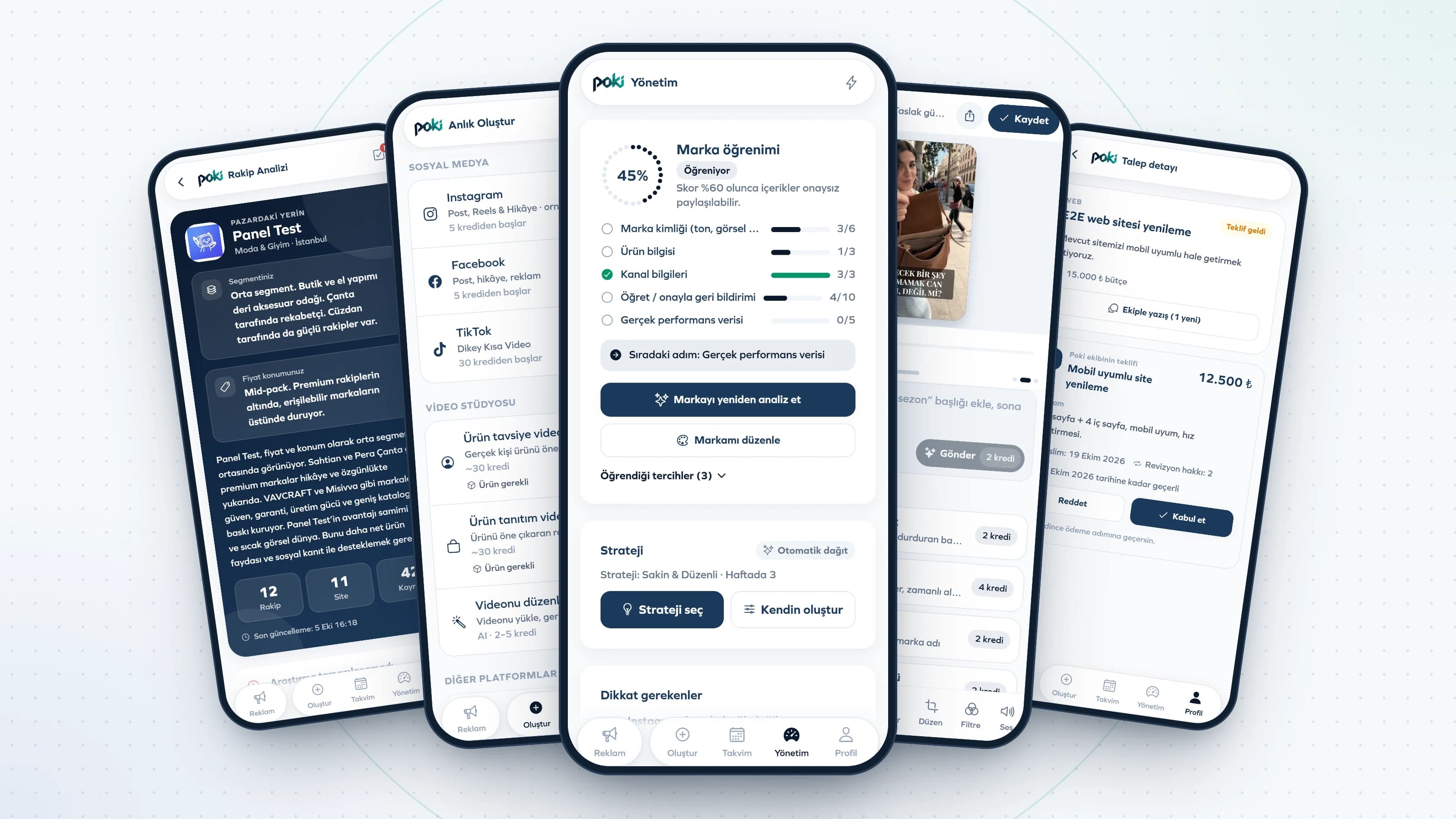
Poki gets to know your brand; it plans, creates, posts and learns from the results. At every step, you have the final say.
- 1 mo
- Content calendar looking ahead
- 72 h
- Creation and approval time before posting
- 6
- Ready-made social media strategies, or your own plan
- 10
- Languages for content and the app
Six steps, one coffee.
The settings you choose on day one become the foundation of every piece of content for months.
- 01
Download the app
Get Poki from the App Store or Google Play and create your account in seconds.
- 02
Introduce your brand
Add your website and logo. Your colors, tone of voice and target audience are worked out; every piece of content is created knowing your brand.
- 03
Choose your business model
Online store, marketplace, subscription, appointment-based service, local business or lead generation. The social media strategy suggestion is shaped around it.
- 04
Add your products
Photo, price, stock and campaign details. Content uses your product's own photo, not a lookalike.
- 05
Connect your accounts
Connect Instagram and Facebook through Meta's own screen. Your password never reaches Poki.
- 06
Choose your social media strategy
Pick one of six ready-made strategies, or set the days, times and frequency yourself. The calendar is built instantly.
Three screens, all the work.
- 01
Show the product, leave the rest
One product photo or a single sentence is enough. Poki sets the scene, shoots the video and writes the hook and captions on top.
- 02
A fresh angle every week
Same product, different story: on the street, in hand, in close-up. Your calendar arrives full weeks ahead; you just take a look.
- 03
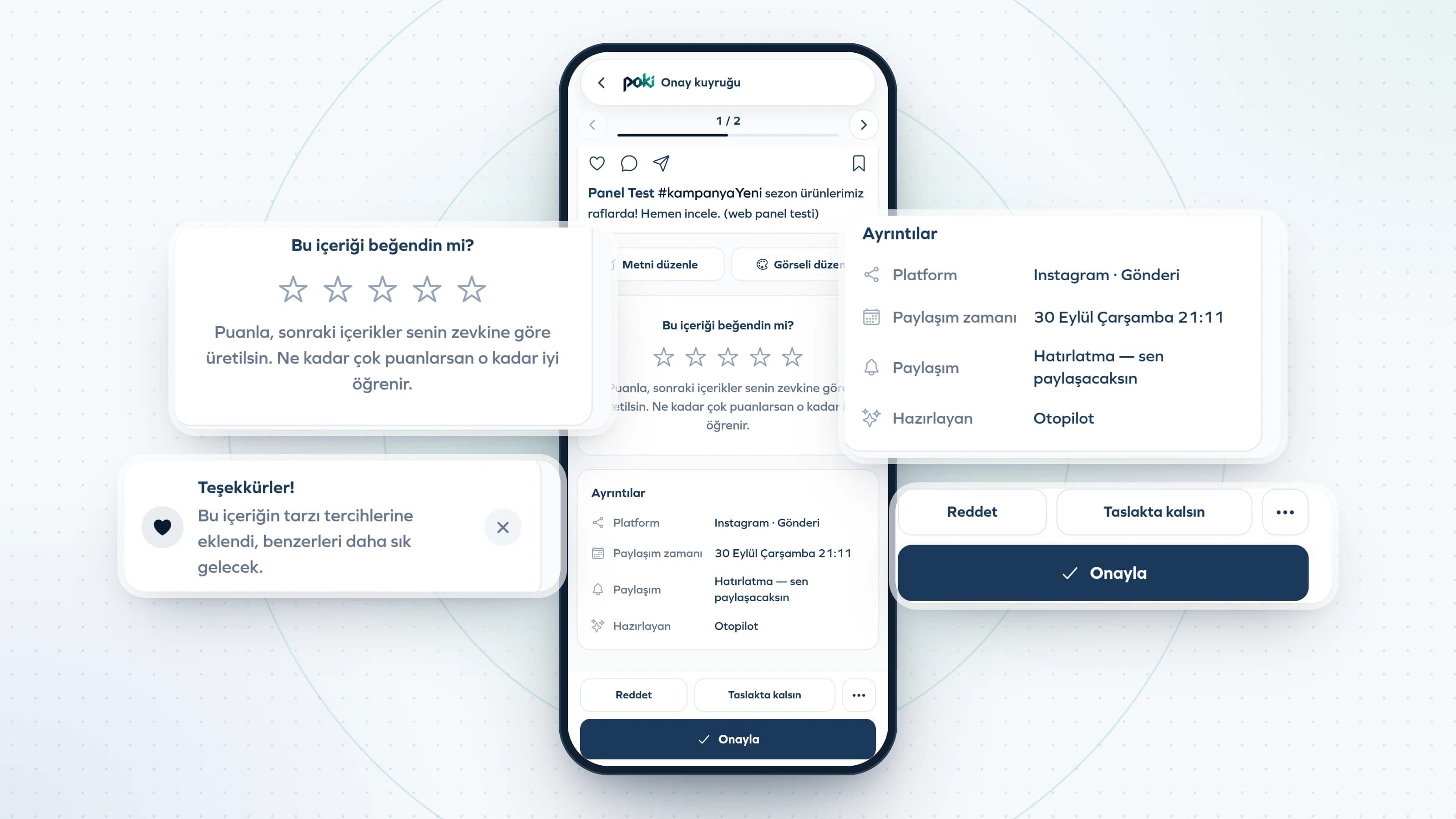
Approve, and it posts itself
Every video lands for your approval 72 hours before posting. On Instagram and Facebook it goes live on its own when the time comes.
From plan to result, every step visible.
Every item on the calendar follows the same path. You can see where it is in the app at any moment.
- Plan
Placed on the calendar
Type, topic, time and the product to promote are chosen by your strategy. Special days are added on their own.
- 72 hours before
Created
The image or video, caption and hashtags are prepared. Credits are spent at this exact moment, not months in advance.
- Approval
Sent to you
Approve it if you like it; or edit, regenerate or cancel. If you cancel a queued generation, your credits are refunded.
- Posting time
Goes live
It is posted on its own on Instagram and Facebook. For TikTok, YouTube and LinkedIn, you get a reminder with the content ready.
- Afterwards
Measured and learned
Reach, saves, shares and profile visits are tracked. The hooks and styles that work come first in the next content.
You choose how automatic.
When you're starting out, you approve everything. As Poki learns your brand, you can gradually loosen the reins.
Approval mode
Every piece of content comes to you for approval before it's posted. You always see what's going out in advance.
Fully automatic
Once Poki has learned your brand well enough, you can turn on posting without approval. Content found risky still comes to you for approval.
Agent permissions
Turn the image and video agents on or off separately. An agent that is off creates no content; its items wait on the calendar as drafts.
- Banned words, claims that are risky for your industry and a missing call to action are checked in every piece of content.
- When you regenerate content you didn't like, the old version isn't deleted; it stays in My Drafts.